> ## Documentation Index
> Fetch the complete documentation index at: https://helium-figma-import-quickguide.mintlify.site/llms.txt
> Use this file to discover all available pages before exploring further.
# Setting Up Fallbacks
> How to download a fallback bundle from the dashboard and include it in your app.
## What is a "fallback bundle"?
The Helium SDK does its best to fetch the latest paywalls to display in your app. But if for some reason a paywall is not available — perhaps if an app user temporarily did not have a data connection — Helium will attempt to show a "fallback".
By using a fallback bundle you can download copies of your actual Helium paywalls and include that in your app to use in the rare case that a Helium paywall is not ready for display.
## Download Fallback Bundle
Go to the **Workflows** page in your dashboard and find the **Download Fallbacks** button:
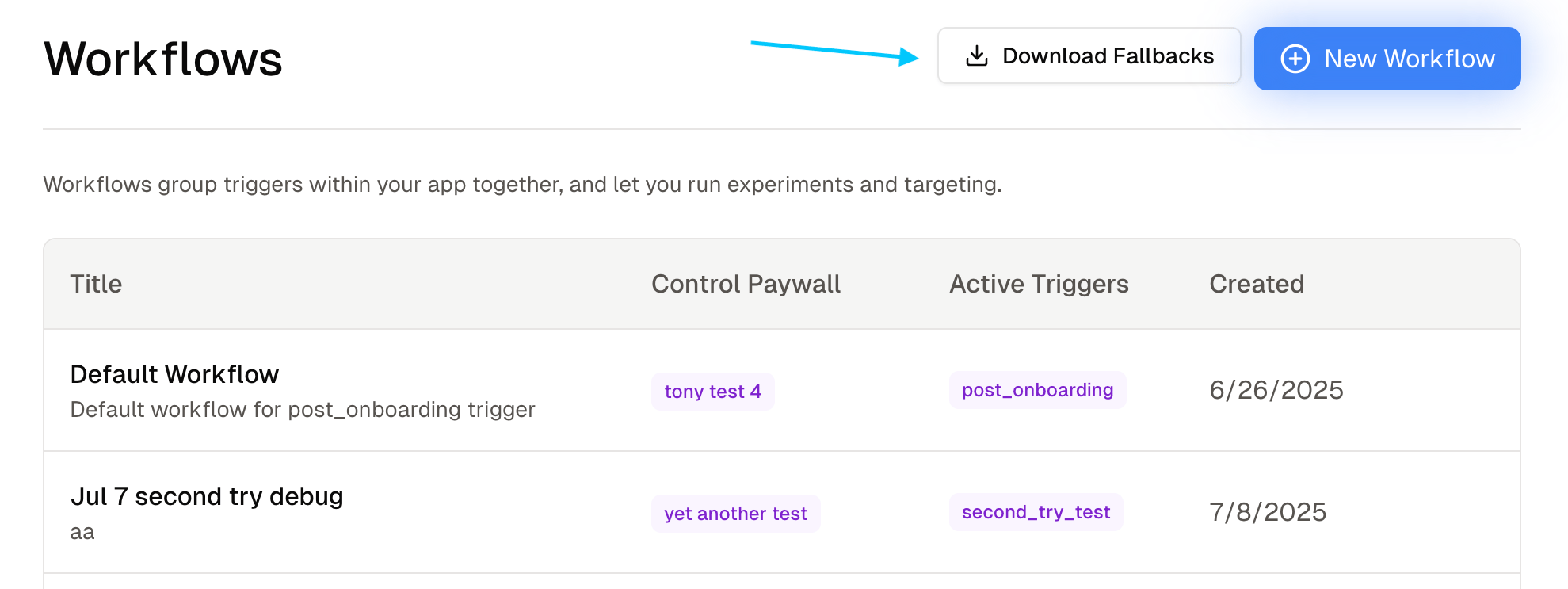 Click that to open a dialog and select which control paywalls you would like to include as fallback for their corresponding trigger.
If you update these paywalls (or add new ones) then you might consider doing this process again to get a newer fallback bundle.
Download the file. It should be named something like **fallback-bundle-xxxx-xx-xx.json** where the **x** 's are replaced with today's date.
## Pass Fallback Bundle to Helium SDK
1. Integrate the SDK with the [iOS Quickstart](/sdk/quickstart-ios) if you haven't done so already.
2. Drag your downloaded bundle into the Project navigator of your Xcode project.
3. You should see a dialog with **Action** and \*\*Targets \*\*fields. For **Action**, either option (copy or move) is fine. For \*\*Targets \*\*ensure that your app's main target is selected.
4. Then pass the bundle URL to `Helium.initialize`
```swift theme={null}
let fallbackBundleURL = Bundle.main.url(forResource: "fallback-bundle-xxxx-xx-xx", withExtension: "json")
Helium.shared.initialize(
apiKey: apiKey,
heliumPaywallDelegate: delegate,
// ... other parameters ...
fallbackConfig: HeliumFallbackConfig.withFallbackBundle(fallbackBundleURL)
)
```
Make sure to replace **fallback-bundle-xxxx-xx-xx** with the correct name!
1. Integrate the SDK with the [Android Quickstart](/sdk/quickstart-android) if you haven't done so already.
2. In your app's `src/main` directory, create an `assets` folder if one doesn't already exist.
3. Drag your downloaded bundle into the `assets` folder.
4. Create a `HeliumFallbackConfig` with the bundle file name and pass it to `Helium.initialize`
```kotlin theme={null}
Helium.initialize(
context = applicationContext,
apiKey = "YOUR_API_KEY",
heliumPaywallDelegate = yourDelegate,
// ... other parameters ...
fallbackConfig = HeliumFallbackConfig.withFallbackBundle(fallbackBundleName = "fallback-bundle-xxxx-xx-xx.json"),
)
```
Make sure to replace **fallback-bundle-xxxx-xx-xx** with the correct name!
1. Integrate the SDK with the [React Native Quickstart](/sdk/quickstart-react-native) if you haven't done so already.
2. Drag your downloaded bundle into your React Native project where desired.
3. Pass in to `Helium.initialize`
```typescript theme={null}
const fallbackBundle = require('./assets/fallback-bundle-xxxx-xx-xx.json');
initialize(
apiKey: apiKey,
// ... other parameters ...
fallbackBundle: fallbackBundle,
)
```
Make sure to use the correct path and filename in your `require` call!
1. Integrate the SDK with the [Flutter Quickstart](/sdk/quickstart-flutter) if you haven't done so already.
2. Drag your downloaded bundle into your Flutter project where desired.
3. In your `pubspec.yaml` add the new asset:
```yaml theme={null}
assets:
- .env
- fallback-bundle-xxxx-xx-xx.json # add this line
```
4. Pass in to `Helium.initialize`
```dart theme={null}
heliumFlutter.initialize(
// ... other parameters ...
fallbackBundleAssetPath: "fallback-bundle-xxxx-xx-xx.json"
```
Make sure to use the correct filename in both `pubspec.yaml` and the call to `initialize`!
All done! If you want to test the fallback bundle, you can run your app with device in airplane mode and attempt to show a paywall. The corresponding fallback paywall should display!
## How to Monitor and Minimize Fallback Rate
You can check your app's fallback rate by going to [https://app.tryhelium.com/metrics](https://app.tryhelium.com/metrics), and clicking on the "Fallback Rate" tab under Monitoring. This rate shows the # of fallback paywall opens vs prod paywall opens. If you notice your fallback rate is substantially high, here are some tips on minimizing it:
* **Set a higher loading budget (requires Helium SDK 3.0.0+).** If a paywall is opened while a download is still in progress, Helium will show a shimmer for *loadingBudget* seconds while waiting for the download to finish, before falling back. Simply increasing this value can basically eliminate most cases of fallbacks safe - we recommend \< 5 seconds.
* **Move your initialize() call earlier in your app's lifecycle.** We recommend right after app launch, or right after onboarding with a higher loading budget.
* **Reduce the size of image assets in your paywall.** We recommend keeping each paywall to be under about 3-5 MB in total size. If you're adding high resolution imagery to your paywall (which is fine!) we recommend converting images to .webp format - e.g. with an online converter like [https://cloudconvert.com/webp-converter](https://cloudconvert.com/webp-converter).
If these aren't options for you (for example, if you have a lot of paywalls) and the above aren't helpful, please get in touch! We'll be happy to build a custom solution or server for you to ensure your fallback rate is low and your paywall \$ rate is high.
Click that to open a dialog and select which control paywalls you would like to include as fallback for their corresponding trigger.
If you update these paywalls (or add new ones) then you might consider doing this process again to get a newer fallback bundle.
Download the file. It should be named something like **fallback-bundle-xxxx-xx-xx.json** where the **x** 's are replaced with today's date.
## Pass Fallback Bundle to Helium SDK
1. Integrate the SDK with the [iOS Quickstart](/sdk/quickstart-ios) if you haven't done so already.
2. Drag your downloaded bundle into the Project navigator of your Xcode project.
3. You should see a dialog with **Action** and \*\*Targets \*\*fields. For **Action**, either option (copy or move) is fine. For \*\*Targets \*\*ensure that your app's main target is selected.
4. Then pass the bundle URL to `Helium.initialize`
```swift theme={null}
let fallbackBundleURL = Bundle.main.url(forResource: "fallback-bundle-xxxx-xx-xx", withExtension: "json")
Helium.shared.initialize(
apiKey: apiKey,
heliumPaywallDelegate: delegate,
// ... other parameters ...
fallbackConfig: HeliumFallbackConfig.withFallbackBundle(fallbackBundleURL)
)
```
Make sure to replace **fallback-bundle-xxxx-xx-xx** with the correct name!
1. Integrate the SDK with the [Android Quickstart](/sdk/quickstart-android) if you haven't done so already.
2. In your app's `src/main` directory, create an `assets` folder if one doesn't already exist.
3. Drag your downloaded bundle into the `assets` folder.
4. Create a `HeliumFallbackConfig` with the bundle file name and pass it to `Helium.initialize`
```kotlin theme={null}
Helium.initialize(
context = applicationContext,
apiKey = "YOUR_API_KEY",
heliumPaywallDelegate = yourDelegate,
// ... other parameters ...
fallbackConfig = HeliumFallbackConfig.withFallbackBundle(fallbackBundleName = "fallback-bundle-xxxx-xx-xx.json"),
)
```
Make sure to replace **fallback-bundle-xxxx-xx-xx** with the correct name!
1. Integrate the SDK with the [React Native Quickstart](/sdk/quickstart-react-native) if you haven't done so already.
2. Drag your downloaded bundle into your React Native project where desired.
3. Pass in to `Helium.initialize`
```typescript theme={null}
const fallbackBundle = require('./assets/fallback-bundle-xxxx-xx-xx.json');
initialize(
apiKey: apiKey,
// ... other parameters ...
fallbackBundle: fallbackBundle,
)
```
Make sure to use the correct path and filename in your `require` call!
1. Integrate the SDK with the [Flutter Quickstart](/sdk/quickstart-flutter) if you haven't done so already.
2. Drag your downloaded bundle into your Flutter project where desired.
3. In your `pubspec.yaml` add the new asset:
```yaml theme={null}
assets:
- .env
- fallback-bundle-xxxx-xx-xx.json # add this line
```
4. Pass in to `Helium.initialize`
```dart theme={null}
heliumFlutter.initialize(
// ... other parameters ...
fallbackBundleAssetPath: "fallback-bundle-xxxx-xx-xx.json"
```
Make sure to use the correct filename in both `pubspec.yaml` and the call to `initialize`!
All done! If you want to test the fallback bundle, you can run your app with device in airplane mode and attempt to show a paywall. The corresponding fallback paywall should display!
## How to Monitor and Minimize Fallback Rate
You can check your app's fallback rate by going to [https://app.tryhelium.com/metrics](https://app.tryhelium.com/metrics), and clicking on the "Fallback Rate" tab under Monitoring. This rate shows the # of fallback paywall opens vs prod paywall opens. If you notice your fallback rate is substantially high, here are some tips on minimizing it:
* **Set a higher loading budget (requires Helium SDK 3.0.0+).** If a paywall is opened while a download is still in progress, Helium will show a shimmer for *loadingBudget* seconds while waiting for the download to finish, before falling back. Simply increasing this value can basically eliminate most cases of fallbacks safe - we recommend \< 5 seconds.
* **Move your initialize() call earlier in your app's lifecycle.** We recommend right after app launch, or right after onboarding with a higher loading budget.
* **Reduce the size of image assets in your paywall.** We recommend keeping each paywall to be under about 3-5 MB in total size. If you're adding high resolution imagery to your paywall (which is fine!) we recommend converting images to .webp format - e.g. with an online converter like [https://cloudconvert.com/webp-converter](https://cloudconvert.com/webp-converter).
If these aren't options for you (for example, if you have a lot of paywalls) and the above aren't helpful, please get in touch! We'll be happy to build a custom solution or server for you to ensure your fallback rate is low and your paywall \$ rate is high.